🔑 Key Takeaways:
Learn how to easily install, configure, and activate the Smart IPTV app on Samsung, LG, and Android TVs in Ireland. Find step-by-step setup details and playlist guides.
Introduction: The Smart IPTV App for Smart TVs
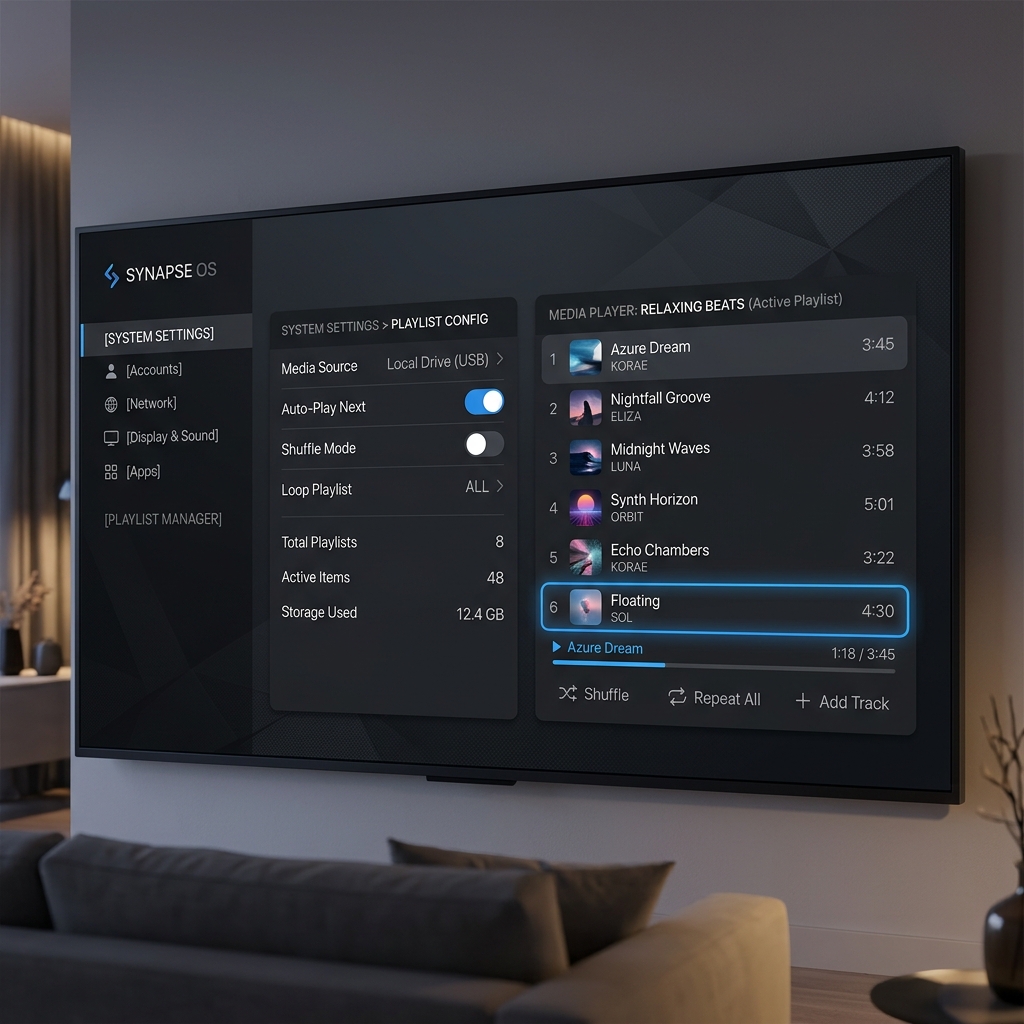
If you own a Samsung, LG, or Android Smart TV, you don’t need external boxes or streaming sticks to access your favorite channels. The Smart IPTV app (also known as SIPTV) is one of the most popular and reliable media players designed specifically for Smart TVs. It allows you to upload custom M3U playlists and stream live TV, VOD, and EPG guides directly through your television interface.
In this guide, we will provide a step-by-step tutorial on how to install and configure smart iptv on your Smart TV, upload your playlist, and get the most out of your premium streaming subscription in Ireland.
Step 1: Install the Smart IPTV App on Your TV
To begin, you must download the app onto your television. Depending on your TV brand, follow these instructions:
- Samsung Smart TVs: Open the Samsung App Store, search for “Smart IPTV”, and click install. (Note: If the app is missing from your regional store, you may need to install it manually via a USB flash drive).
- LG Smart TVs: Open the LG Content Store, search for “Smart IPTV”, and download the app.
- Android TVs (Sony, Philips, TCL): Go to the Google Play Store, search for the app, and install it.
Once installed, launch the app. You will see a screen displaying your TV’s unique **MAC Address** (which looks like XX:XX:XX:XX:XX:XX). Write this address down, as you will need it to upload your playlist.
Step 2: Upload Your M3U Playlist
To load your channel list, navigate to the official Smart IPTV playlist upload portal on your phone or PC:
- Go to the website:
siptv.app/mylist/ - Enter your TV’s **MAC Address** in the designated field.
- Paste your M3U playlist URL (provided in your activation email from IPTV4UK) into the “Link” field.
- Select “Ireland” or “UK” as the EPG country if prompted.
- Click the “Send” or “Upload” button.
- Restart the Smart IPTV app on your television. The app will fetch the channels and load your streaming playlist.
Smart IPTV Configuration and App Troubleshooting
While the Smart IPTV player is incredibly robust, you may occasionally run into setup blocks. Here is a troubleshooting matrix for common errors:
| Error Message | Probable Cause | Recommended Fix |
|---|---|---|
| “No Playlist Uploaded” | MAC Address mismatch or upload failed | Re-upload M3U link to siptv.app, checking MAC address |
| “Check URL” or “Connection Failed” | M3U URL has typo or server is offline | Verify your provider link and make sure it has no spaces |
| Constant Buffering | Wi-Fi signal degradation or ISP throttling | Connect via Ethernet cable or try a reliable VPN |
Optimizing Video Player Settings
To avoid buffering and achieve 4K video rendering on smart iptv, configure the following settings in your TV menu:
* **Buffer Size:** Set the network buffer size to 5 seconds or higher. This allows the app to pre-load streams to prevent freezes during traffic spikes.
* **Hardware Decoding:** Enable hardware decoding in your TV settings to offload video processing from the CPU to the GPU.
* **Clean RAM:** Frequently clear your Smart TV cache by holding the power button on your remote for 5 seconds until the TV reboots.
Activating the Lifetime App License
Please note that Smart IPTV is a media player, not a playlist provider. The app offers a **7-day free trial** upon installation. After the trial expires, you must activate the app for a one-time fee of approximately €5.49 directly on their website. This is a lifetime license for your TV’s MAC address and does not include any channels. To get a high-quality channel playlist, you must subscribe to a premium provider like IPTV4UK.
Why Choose IPTV4UK for Smart IPTV?
Our service is fully optimized for the Smart IPTV player. We provide clean, fast-loading M3U links and Xtream Codes credentials, complete with an integrated EPG guide that populates your program timetable automatically. With over 40,000 live channels and 54,000 movies and TV series in HD and 4K, you get the absolute best streaming experience available in Ireland. Check out our installation steps for other apps in our IPTV UK Installation Guide.
❓ Can I use Smart IPTV on my Amazon Firestick?
Yes, but the installation is manual. You must download the SIPTV APK via the Downloader app and install it on your Firestick.
❓ Why is my EPG guide missing?
Make sure you check the “Keep online” and EPG checkboxes when uploading your playlist link at siptv.app/mylist/.
Complete Installation and Configuration Framework for 2026
Setting up your TV channels on any streaming device can seem complex at first, but following a standardized step-by-step checklist ensures a smooth configuration. Whether you are using a dedicated TV box, a portable streaming stick, or a mobile device, the general architecture remains similar. The media player functions as the engine, while the provider M3U link or Xtream API credentials function as the fuel.
1. Installing the App via Downloader (For Firestick and Fire TV)
Since many premium players (such as IPTV Smarters Pro APK or Tivimate) are not hosted directly inside the Amazon App Store, you must side-load the application. Follow this guide to prepare your device:
- Navigate to Settings on your Firestick dashboard.
- Select My Fire TV (or Device & Software) -> click Developer Options.
- Turn on Apps from Unknown Sources. (Note: On newer Fire OS versions, you must navigate to Settings -> security & privacy, click Install Unknown Apps, select Downloader, and toggle it to Allowed).
- Go back to the Home screen, search for the app named Downloader, and install it.
- Launch Downloader, enter the direct download code (e.g.
78278for Smarters APK), and install the file.
2. Setting Up on Samsung and LG Smart TVs
If you prefer to stream directly through your television without extra hardware, you can use built-in media players. Search your TV’s application library (Samsung App Store or LG Content Store) for popular players like Smart IPTV, IBO Player, or DuplexPlay. Once installed:
* Note down your TV’s unique MAC Address (displayed on the launch screen).
* Navigate to the provider’s playlist management portal on your computer or phone.
* Paste your MAC Address and insert the M3U playlist link provided by IPTV4UK.
* Click Save, and restart the app on your Smart TV to synchronize the channels.
3. Configuration for iOS and Android Mobile Devices
For streaming on the go (on your smartphone or tablet), navigate to the Google Play Store (Android) or Apple App Store (iOS). Search for Smarters Player Lite (iOS) or IPTV Smarters Pro (Android). Download the player, select the option to log in with Xtream Codes API, and enter your login details (Username, Password, and Portal URL). This method is highly recommended as it loads channel lists and VOD databases much faster than raw M3U playlist files.
Analyzing Live Sports Broadcast Quality and Network Infrastructure
For Irish sports fans, streaming stability during the All-Ireland Football Finals, hurling championships, Premier League weekends, or Champions League fixtures is the absolute gold standard of service quality. Cheap resold subscriptions often experience heavy buffering or freeze completely during these high-demand hours. This occurs because reseller platforms route thousands of connections through a single shared server node, which runs out of memory and bandwidth.
Premium providers avoid this congestion by investing in private CDN (Content Delivery Network) infrastructure. A CDN is a network of servers distributed globally. When you request a live stream, the CDN automatically connects you to the closest server node (e.g. a server located in Dublin or London). This reduces latency, prevents network congestion, and delivers buffer-free streams in Full HD and 4K quality at 60 frames per second (fps), ensuring you never miss a goal or a point.
IPTV Streaming Safety and Privacy Guidelines in Ireland
Security and privacy are essential factors when streaming media online. While premium technologies like IPTV are completely legal, your internet service provider (ISP) may monitor your data traffic and throttle your broadband speeds if they detect high bandwidth consumption (such as continuous 4K streaming). To maintain maximum speed and protect your private data, follow these safety best practices:
- Use a Reliable VPN (Optional): If you notice your streams buffering during prime-time hours, your ISP may be throttling your speed. A VPN encrypts your traffic, preventing your ISP from monitoring your streaming habits and restoring your full connection speeds.
- Never Share Your Credentials: Your playlist link and Xtream API login details are unique to your account. Sharing them online or with friends can trigger server security alerts, resulting in temporary account suspensions.
- Secure Payment Methods: Always buy subscriptions from providers that offer secure, encrypted checkout gateways (like Visa, Mastercard, or Bitcoin) to protect your financial details.
Understanding Bandwidth and Streaming Speed Recommendations
To enjoy a seamless 4K and Full HD streaming experience on your television, meeting the minimum bandwidth requirements is crucial. Streaming raw digital television packets requires a continuous, uninterrupted data stream. Here are the network speed guidelines recommended by industry experts:
- Standard Definition (SD): A download speed of at least 5 Mbps is required.
- High Definition (HD – 720p): Requires a download speed of 10 Mbps or higher.
- Full HD (FHD – 1080p): Requires at least 15 Mbps download speed.
- Ultra HD (4K Resolution): Requires a minimum stable speed of 25 Mbps.
To verify your current speed, we recommend visiting Fast.com or Speedtest.net on your streaming device. If your speeds are adequate but you still experience buffering, consider switching from 2.4GHz Wi-Fi to a 5GHz Wi-Fi band, which offers significantly faster data transfer speeds. Better yet, route a physical ethernet cable directly into your TV or Firestick using a compatible USB Ethernet adapter to guarantee maximum stability and eliminate any wireless interference.
Ready to Stream 40,000+ Channels in 4K?
Get anti-freezing server stability, 54,000 VOD movies, and 24/7 support. Plans from £12.99/month.